LinkedIn Video Downloader
Download Any LinkedIn Video Free
Paste a LinkedIn post link and save the video as MP4 — full quality, no watermark, no login. Photo posts work too.
How to get the LinkedIn video link
No login needed- 1
Open the ⋯ menu
On the LinkedIn post you want, tap the three dots in its top-right corner.
- 2
Copy link to post
Pick “Copy link to post”. That single link is everything we need.
- 3
Paste it above
Drop it in the box and press Get Video. Your MP4 is ready in seconds.
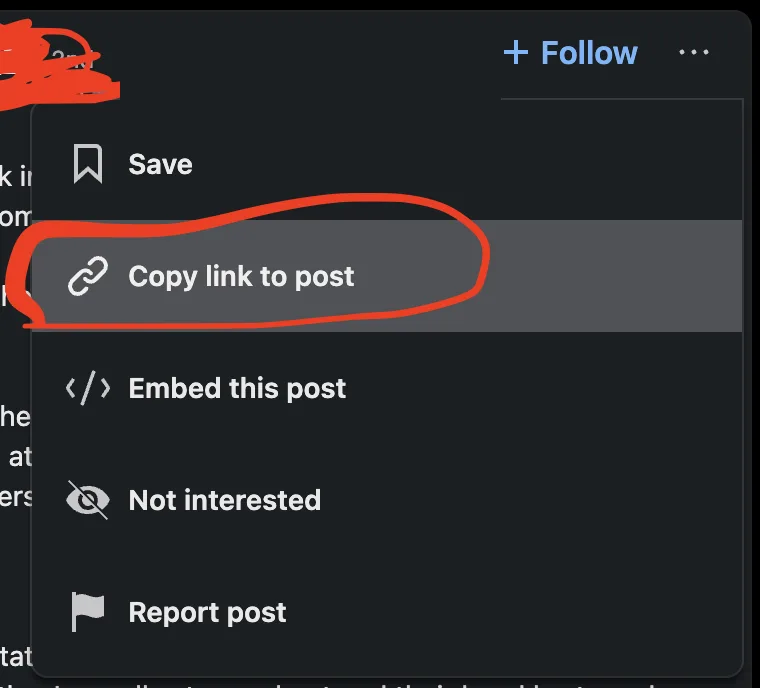
On the LinkedIn app: tap Send or the share icon under the post, then Copy link. On desktop you can also just copy the URL from your browser’s address bar while the post is open.
How to Download a Video From LinkedIn
Three steps, under a minute, and no LinkedIn account at any point.
Copy the post link
On the post, tap the three dots and choose “Copy link to post”. On desktop, the URL in the address bar works just as well.
Paste it above
Drop the link into the box and press Get Video. We pull the post's media in a few seconds — nothing is installed and nobody is notified.
Save the MP4
Check the preview, then press Download MP4. The original file lands on your device — no watermark, no re-encoding, no quality loss.
Built for Speed, Free Forever
Original quality
We hand you the exact MP4 LinkedIn serves — usually 720p or 1080p. No re-encoding, so nothing softens or blocks up.
No watermark, ever
Nothing is stamped onto the file. What the author uploaded is what you get.
No login, no signup
No LinkedIn account, no email, no app. Paste a link and go — and nobody is notified you did.
Photos and carousels too
Photo posts aren't a dead end. Every image in the post gets its own Save button.
Works everywhere
iPhone, Android, Mac, Windows — it's a web page, so there's nothing to keep updated.
Recent posts remembered
The last posts you fetched sit under the box as thumbnails, so grabbing one again takes a single tap. Saved in your browser only.
Frequently Asked Questions
Everything about downloading LinkedIn videos, quality, mobile, and what's fair to do with the file.
Why LinkedIn has no download button
LinkedIn plays video inline and stops there. There is no Save option in the post menu, no offline mode in the mobile app, and nothing in the desktop player's right-click menu on most browsers. If you want to keep a conference talk, a product demo or a clip you posted yourself, the platform simply doesn't offer a way.
That is what this tool fills in. Give it the post link and it reads the post the same way your browser does, finds the MP4 the player is pointed at, and hands you that file directly. Nothing is re-encoded and nothing is added — the bytes you save are the bytes LinkedIn serves.
Which links work
Both LinkedIn post URL formats are accepted. The everyday one looks like linkedin.com/posts/name_some-text-ugcPost-123456-abcd and is what “Copy link to post” gives you. The other appears when you open a post from your feed: linkedin.com/feed/update/urn:li:ugcPost:123456. Paste either. Article links (/pulse/…) work too.
What won't work is a profile URL, a company page, or a post restricted to the author's connections — if a logged-out visitor can't open it, neither can we. The tool says so plainly instead of spinning.
Downloading on iPhone and Android
Mobile is the common case, so the page is built for it. In the LinkedIn app, tap the three dots on the post and choose Copy link to post, switch to your browser, and paste. On iOS the MP4 saves into Files (Safari puts it under Downloads); on Android it goes to your Downloads folder and shows in the notification shade. From there you can move it into Photos or share it on.
What's fair to do with the file
Saving your own uploads, keeping a talk for offline viewing, or archiving a reference for internal research are all ordinary uses. Re-uploading somebody else's video as your own is not, and it can land you a copyright complaint. If you want to share a clip publicly, the safe route is to credit the author or simply reshare the original post — which also does more for them than a reupload would.
Disclaimer
SpyBroski is not affiliated with, endorsed by, or connected to LinkedIn Corporation or Microsoft. This tool only accesses media from posts that LinkedIn already serves publicly — it cannot reach private posts, connection-only content, or anything behind a login. You are responsible for how you use the files you download; respect the original creators' copyright.
Explore More Free Tools
More free downloaders and viewers — no login, no watermark, instant.
Anonymous LinkedIn Profile Viewer
View any LinkedIn profile anonymously — nothing shows in their 'Who viewed your profile' list
Snapchat Story Viewer
View Snapchat stories anonymously without them knowing
TikTok Video Downloader
Download TikTok videos without watermark in HD qualityiFunny Downloader
Download iFunny videos, photos, memes and GIFs to MP4 — no watermark, no loginSnapchat Planets Meaning
Understand Snapchat best friend planets and their orderTikTok Profile Picture Downloader
Download TikTok profile pictures in full HD
Explore Our Blog
Discover expert insights on digital marketing, social media trends, and tips to enhance your online experience.

How Creators Set up an Income Safety Net
A viral post can bring a sudden rush of revenue, but last month’s success will not necessarily pay next month’s bills. Things like platform changes, delayed…

The Second Life of Educational Content on Social Media
A short tutorial can outlive the circumstances that made it clear. Someone finds it through search, a colleague forwards the clip without its caption, or a…Oct 1814 min read
TikTok Profile Views: How They Work and How to Turn Them Off in 2026
Does TikTok show who viewed your profile? Learn how TikTok profile views work, who sees your visits, and how to turn profile views off in 2026.Oct 1011 min read
Snapchat Streak Restore: How to Get Your Lost Streak Back in 2026
Lost a Snapchat streak? See how Snapchat streak restore works in 2026, what it costs, the free options, and what to do when the Restore button is gone.Oct 912 min read
8 Best Instagram Proxies in 2026
Compare 8 best Instagram proxies in 2026 by network type, geo-targeting, session stability, account workflow fit, and pricing.Oct 124 min read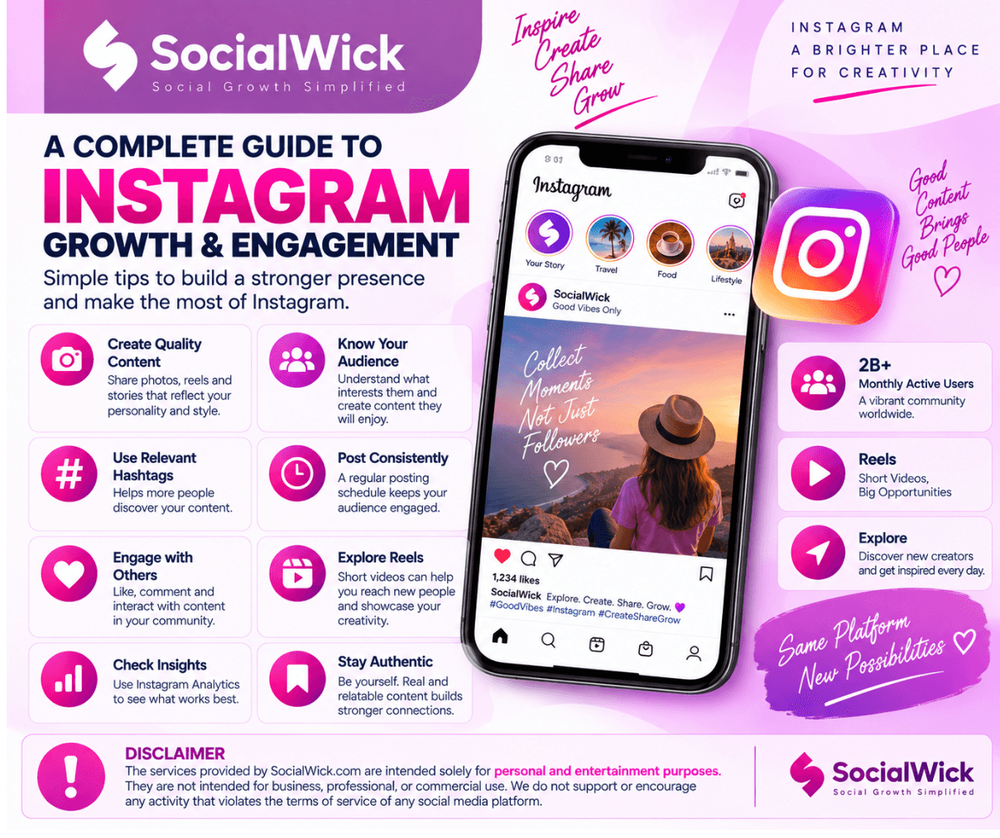
How Instagram Followers Fit Into Your Social Media Strategy
Building a powerful digital presence on Instagram requires a number of critical components, including posting on a continuous basis, thinking visually, and…Sep 304 min read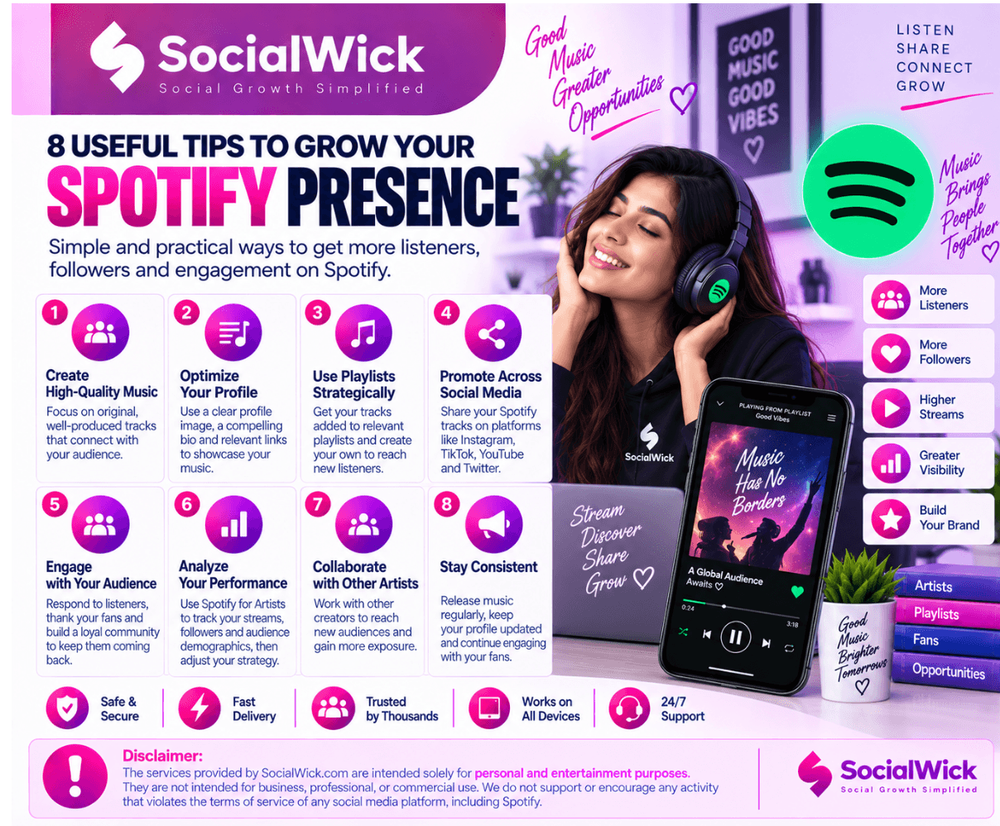
What to Check Before Choosing Spotify Playlist Plays
Spotify playlist plays apply to listening activity connected with tracks inside a selected playlist. They differ from playlist followers, profile followers…Sep 304 min read
Top 4 Sites for Twitch Marketing Across Different Budgets and Campaign Needs
To build an active community on Twitch, you have to stream regularly, comment energetically, and promote your channel smartly. Streamers spend hours…Sep 295 min read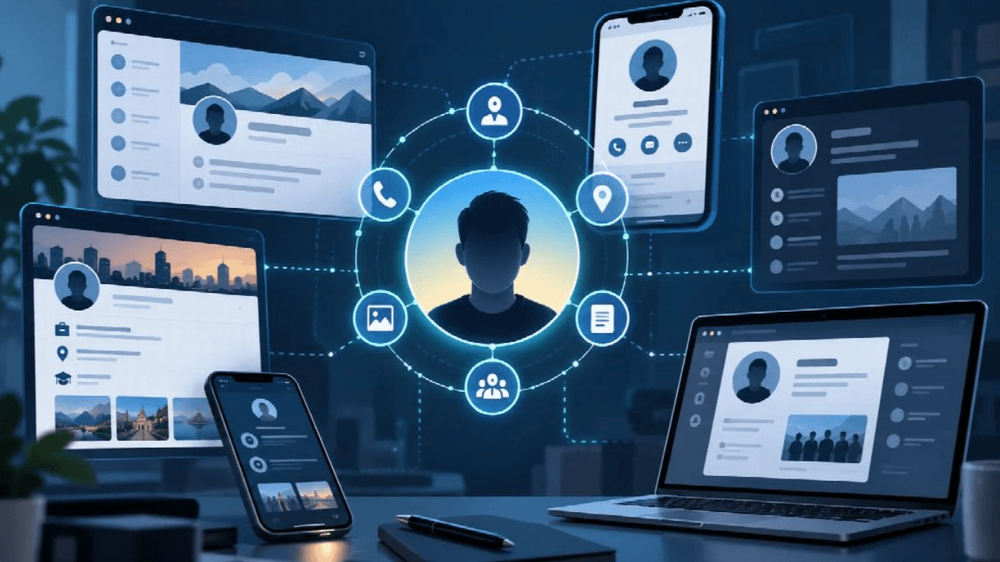
Privacy Settings Are Not a Privacy Strategy: How Separate Social Accounts Become Connected
A user can hide a phone number, switch off activity status, limit profile-photo visibility, and avoid publishing a real name. On one platform, those choices…Sep 2510 min read