How to Unblock Someone on Snapchat (Step-by-Step Guide)

Spybroski Team
We've all been there. You block someone on Snapchat in a moment of frustration, and then weeks later, you're wondering how to undo it. Maybe you reconciled with a friend, or perhaps you blocked someone by accident. Whatever the reason, figuring out how to unblock someone on Snapchat isn't always obvious if you don't know where to look.
The good news? It's actually pretty simple once you know the steps. The less great news is that unblocking someone doesn't automatically restore your friendship, which catches a lot of people off guard. But we'll get into all of that.
Finding Your Blocked List
First things first, you need to locate where Snapchat keeps your blocked users. The app doesn't exactly advertise this feature, so it's tucked away in your settings.
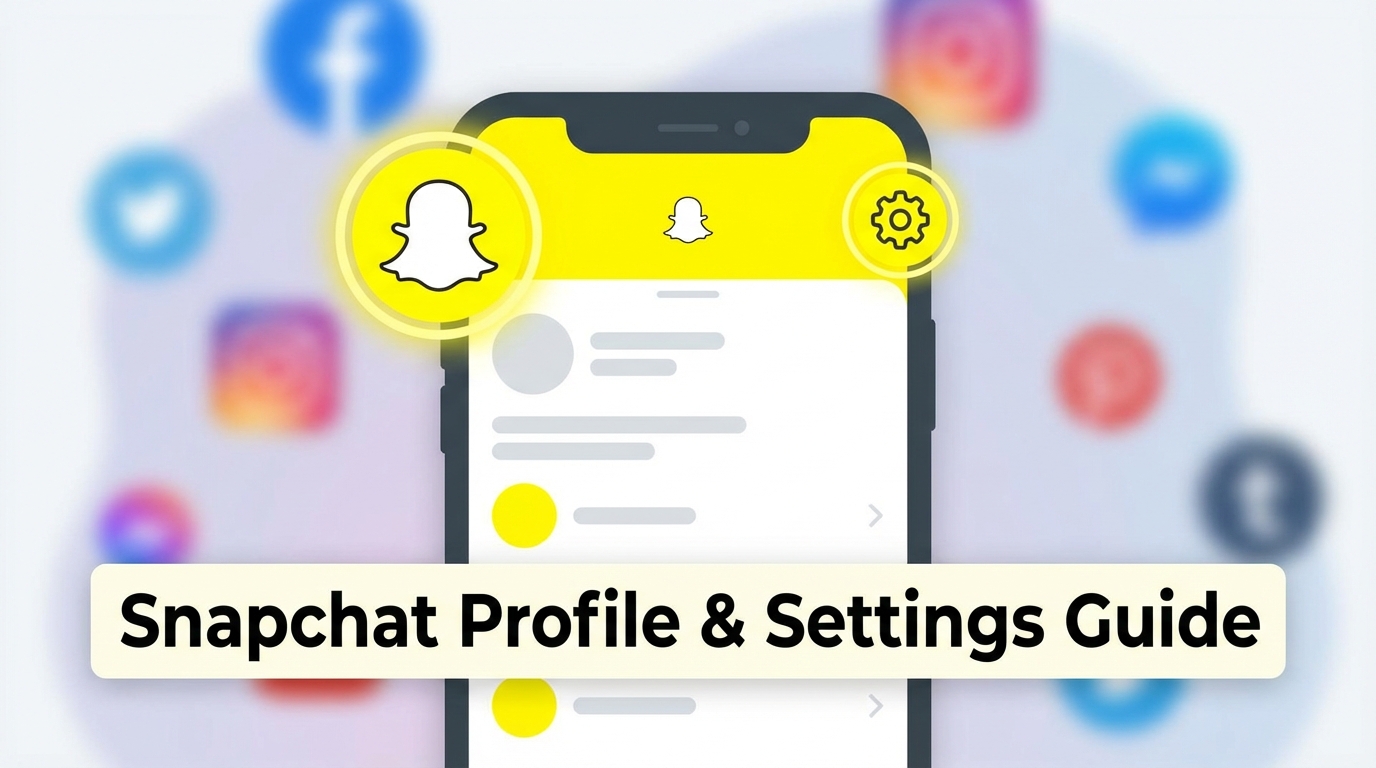
Open Snapchat and tap your profile icon in the top left corner of the screen. You'll see your Bitmoji or profile picture there. Once you're on your profile page, look for the gear icon or settings icon in the top right corner. Tap that.
Now you're in the settings menu. Scroll down until you find the section labeled "Privacy Controls" or just "Privacy." Depending on your app version, it might be worded slightly differently, but you're looking for privacy settings.
Within the privacy section, you'll see an option called "Blocked." Tap on it. This is where Snapchat stores everyone you've blocked. If you haven't blocked anyone, this list will be empty. But if you're reading this, chances are you'll see at least one name there.
The Actual Unblocking Process
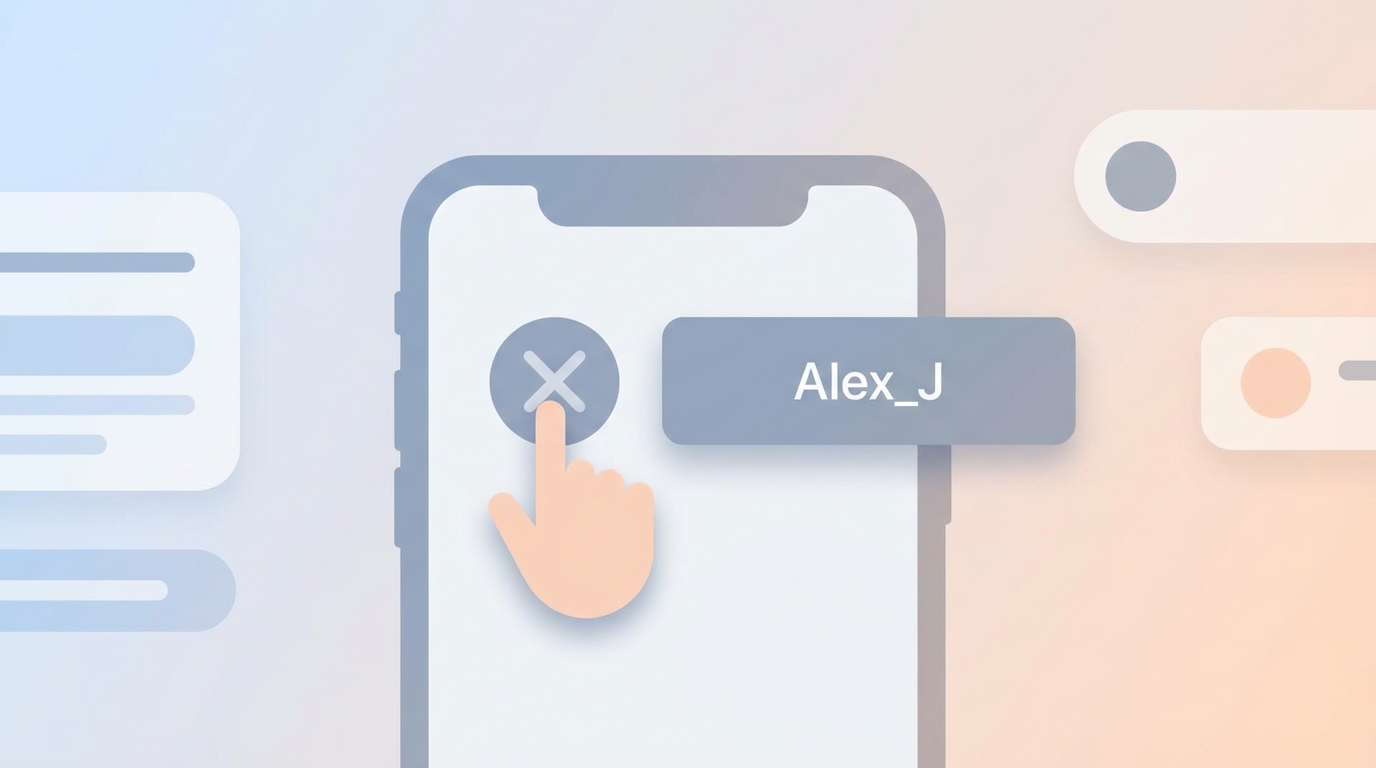
Once you're looking at your blocked list, the unblocking process is straightforward. You'll see the names or usernames of everyone you've blocked, with a small X next to each one.
Tap the X next to the person you want to unblock. Snapchat will ask you to confirm that you want to unblock this person. This is your chance to back out if you're having second thoughts. If you're sure, tap "Yes" or "Confirm."
And that's it. They're unblocked.
The whole thing takes maybe 30 seconds if you know where to go. The navigation is identical whether you're using an iPhone or Android device, so you don't need to worry about different steps based on your phone.
What Happens After You Unblock Someone
Here's where things get a bit more complicated, and it's something Snapchat doesn't really explain well.
When you unblock someone, they don't automatically become your friend again. Blocking someone removes them from your friends list entirely. So even after unblocking, you're basically strangers on the app.
This means you'll need to add them as a friend again if you want to send snaps, chat, or see each other's stories. They won't get a notification that you unblocked them, which is probably a relief if you're trying to be discreet about the whole thing.
To re-add them, you'll need to search for their username using the search function. Tap the search icon, type in their name or username, and when they appear, tap "Add Friend." They'll get a friend request just like when you first connected.
One thing to note is that your previous chat history won't come back. When you block someone, your conversation gets deleted from your view. Unblocking doesn't restore those messages. You're starting fresh.
Why the Process Works This Way

You might wonder why Snapchat makes you go through the extra step of re-adding someone. It's actually a privacy feature. The app assumes that if you blocked someone, you might not want them automatically back in your friends list. You have to make a conscious decision to reconnect.
This also means the person you blocked won't know you unblocked them unless you add them back. There's no notification, no alert, nothing. It's a clean slate situation.
Common Issues and Quick Fixes
Sometimes you might not remember the exact username of the person you blocked. This can make re-adding them tricky. If you're in this situation, you might need to find them through mutual friends or ask them directly for their username.
Another thing people run into is not seeing someone appear in search after unblocking them. Give it a few minutes. Sometimes there's a slight delay in Snapchat's system. If they still don't appear, double check that you're searching for the right username and that they haven't deleted their account.
If you can't find the "Blocked" section in your settings, make sure your app is updated to the latest version. Snapchat moves things around sometimes with updates, but the blocked list is always somewhere in the privacy or account settings area.
Should You Unblock Them?
This is more of a personal question than a technical one, but it's worth thinking about. Unblocking someone is easy. Dealing with whatever led to the block in the first place might not be.
If you blocked someone for safety reasons or because they were harassing you, think carefully before unblocking. Just because time has passed doesn't mean the situation has changed. Your peace of mind matters more than reconnecting on social media.
On the other hand, if it was a misunderstanding or you blocked someone in the heat of an argument, unblocking can be the first step toward fixing things. Just remember that unblocking alone doesn't rebuild trust or friendship. That takes actual conversation and effort outside of app settings.
The Bottom Line
Learning how to unblock someone on Snapchat is simple once you know the path: profile icon, settings, privacy, blocked list, tap the X. The technical part takes less than a minute.
The harder part is everything that comes after. Re-adding them as a friend. Starting conversations again. Rebuilding whatever connection you had before the block happened.
Snapchat gives you the tools to manage your social connections, but it's up to you to decide when and how to use them. Blocking and unblocking are just features. What you do with those features, and why, that's where the real decisions happen.
So if you've decided to unblock someone, go ahead and follow the steps above. And if you're still on the fence about whether you should, well, that's a different kind of guide entirely. The app can't answer that one for you.